

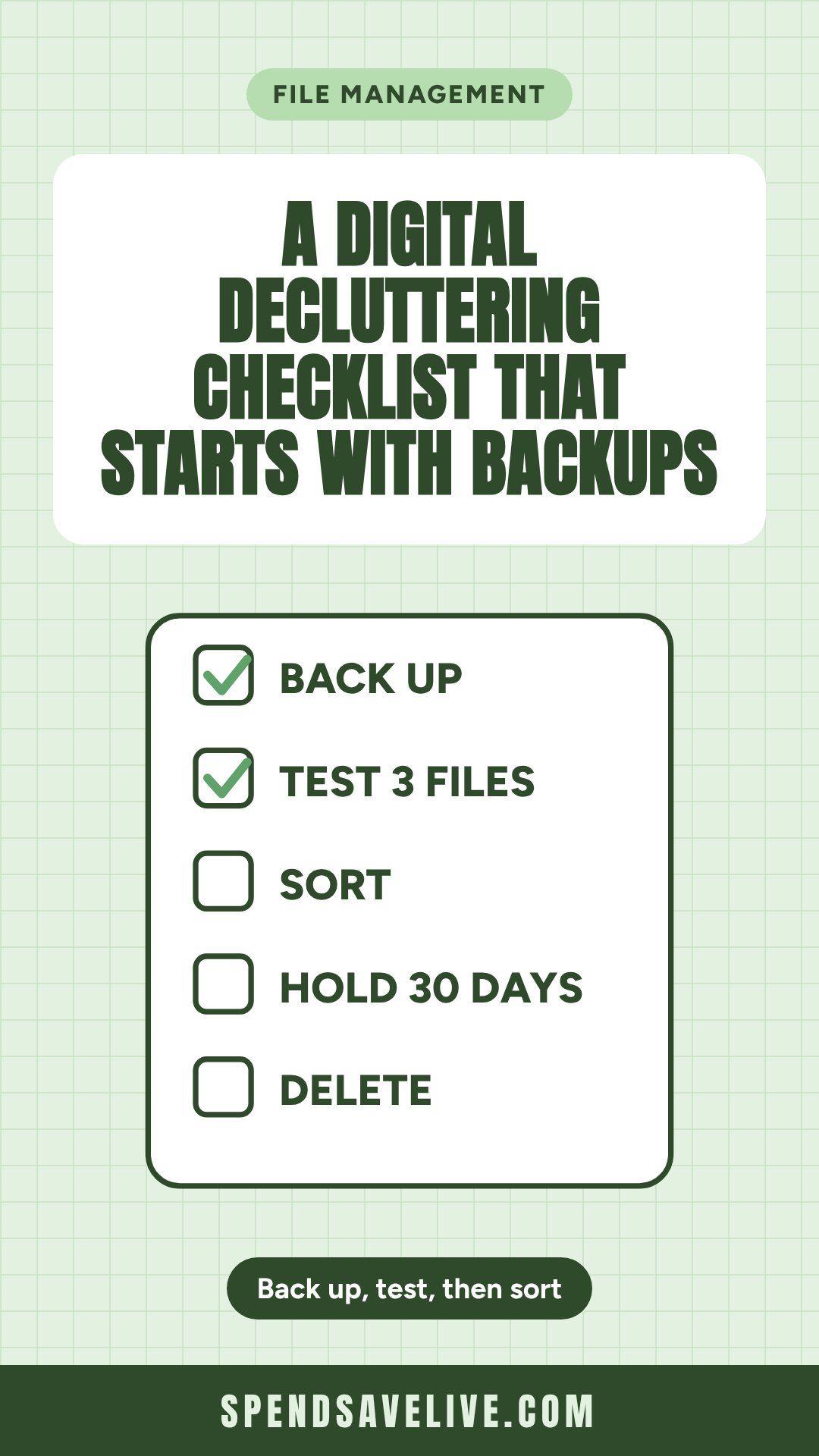
Start a digital decluttering checklist with a backup you have tested, not with the delete key. Copy what matters to two more places, open three files from the backup to prove it works, then sort one folder into keep, hold and delete. Empty the hold folder only after 30 days.
Nobody puts off a digital declutter because they love their Downloads folder. They put it off because somewhere in those 600 files there might be a tax PDF, a lease or the only copy of a scan they’ll need in two years, and one wrong click feels a lot scarier than living with the mess (and that fear is fair). It doesn’t help that some deletes travel further than you think: on an iPhone, deleted photos sit in Recently Deleted for 30 days, and with iCloud Photos turned on, deleting a photo on one device deletes it on your other devices too, according to Apple Support.
This digital decluttering checklist flips the usual order, so the scary part comes last and the safety net comes first. You back up, you check the backup, you sort one folder with a 30-day hold, and only then do you delete in small batches. It lives with our other life and digital admin guides, and it works on a Mac, a Windows laptop or a cloud drive.
Read this also:
- A Life Audit That Helps You Choose One Change for 2027
- A Time Audit Worksheet for Finding Room in Your Week
- A Printable Habit Tracker With Room for Imperfect Weeks
- Year-End Reflection Questions That Lead to One Clear Change
Thirty seconds, five questions. If you nod at two or more, this one is for you:
- There’s a Downloads folder or a desktop you avoid opening
- You couldn’t list your old accounts from memory
- You’re not sure your files exist anywhere except this one device
- You’ve deleted something once and regretted it for a week
- You have never opened a single file from a backup
And if your clutter is mostly the inbox, the camera roll or a phone full of apps, those have their own guides: how to declutter email without losing action messages, how to sort digital photos without losing important files and how to make your phone less cluttered and noisy. This post sticks to files, folders, cloud drives and accounts.
What Is Digital Decluttering, and Where Should You Start?
Digital decluttering means clearing out the files, accounts and digital paperwork you no longer need, so the things you do need are quick to find. Start with the one location that bugs you most, and do only that location in your first session.
That one-location rule matters more than it sounds. “Declutter my digital life” has no finish line, so it never starts, but “sort the Downloads folder” has an end you can actually see. Pick from this short list:
- Downloads, usually the biggest pile and the least important, which makes it a friendly first round.
- Your desktop, which is small, visible and very satisfying once it’s clear.
- One cloud drive folder, good if your laptop is tidy but Google Drive, OneDrive or iCloud Drive is a junk drawer.
- Documents, but save this one for later, because it holds the files you’re most scared to lose.
Plenty of other checklists also tell you to start with whatever stresses you most, and that’s good advice. The bit they skip is what has to happen before the first delete, which is the next section.
How Do You Back Up Before You Delete Anything?
Keep three copies of the files that matter, on two different kinds of storage, with one copy away from your home. That’s the 3-2-1 idea, and it’s the cheapest insurance in this whole post.
The US Cybersecurity and Infrastructure Security Agency (CISA) calls 3-2-1 a trusted guideline: 3 copies of important files, 2 different types of storage media (like a hard drive and the cloud) and 1 copy stored off-site, plus testing your backups so you can actually restore the data (CISA, Back Up Business Data). That page is written for small businesses, so we’re borrowing the idea for a home laptop, not quoting a rule written for you personally.

For one laptop it can look like this:
| Copy | Where it lives | Type of storage |
|---|---|---|
| 1 | The laptop itself (the original) | Internal drive |
| 2 | An external hard drive or USB drive at home | Physical drive |
| 3 | A cloud drive you already pay for or get free | Online, off-site |
Two warnings, because this is where people get caught. First, sync is not a backup. A synced folder copies your mistakes as fast as your good decisions, so a delete in one place can be a delete everywhere. Second, the trash on cloud services is a safety net with a clock on it. Google Photos keeps deleted photos and videos in the trash for 30 days, Google Drive deletes trashed files forever after 30 days (and they still count toward your storage until then), and OneDrive lets personal accounts restore files deleted within the last 30 days. After that, they’re gone, which is why the backup comes first.
How Do You Test That Your Backup Actually Works?
Open three files from the backup itself, not from the original. If all three open, the backup passes, and if one doesn’t, you fix the backup before you delete a single thing.
This three-file version is our own home-sized take on CISA’s advice to test that you can restore data, so treat it as our suggestion, not an official method. Pick these three:
- The oldest file in the folder you plan to sort, because old files are the ones most likely to have been skipped by a backup that started later.
- The largest file, like a video or a big PDF, because big files are the ones that fail to finish uploading.
- One file you’d hate to lose, like last year’s tax return PDF, a lease or an ID scan.
Open each one from the external drive or the cloud drive website, scroll through it, and close it. That’s it. No timer, no special software, and it usually takes a few minutes (we’re not giving you a number because there isn’t an official one, and it depends on your internet).
If a file won’t open, check that the backup actually finished, that the folder is included in it, and that the drive has space left. Then run the three-file test again. A backup you’ve never opened is a hope, and hopes make terrible safety nets.
How Do You Sort Files by Usefulness Into Keep, Hold or Delete?
Sort by what a file would cost you if it vanished, not by how old it is. A ten-year-old warranty scan can matter more than last week’s screenshot.
| Pile | What goes in it | What happens to it |
|---|---|---|
| Keep | Tax papers, ID and passport scans, warranties, contracts, files you open often | Stays, gets a clear folder name, stays in the backup |
| Hold | “Maybe someday” files, anything you can’t place | Moves to a folder called HOLD for 30 days |
| Delete | Duplicates, old installers, screenshots of nothing, files you can download again | Goes to the Trash, emptied after the hold |
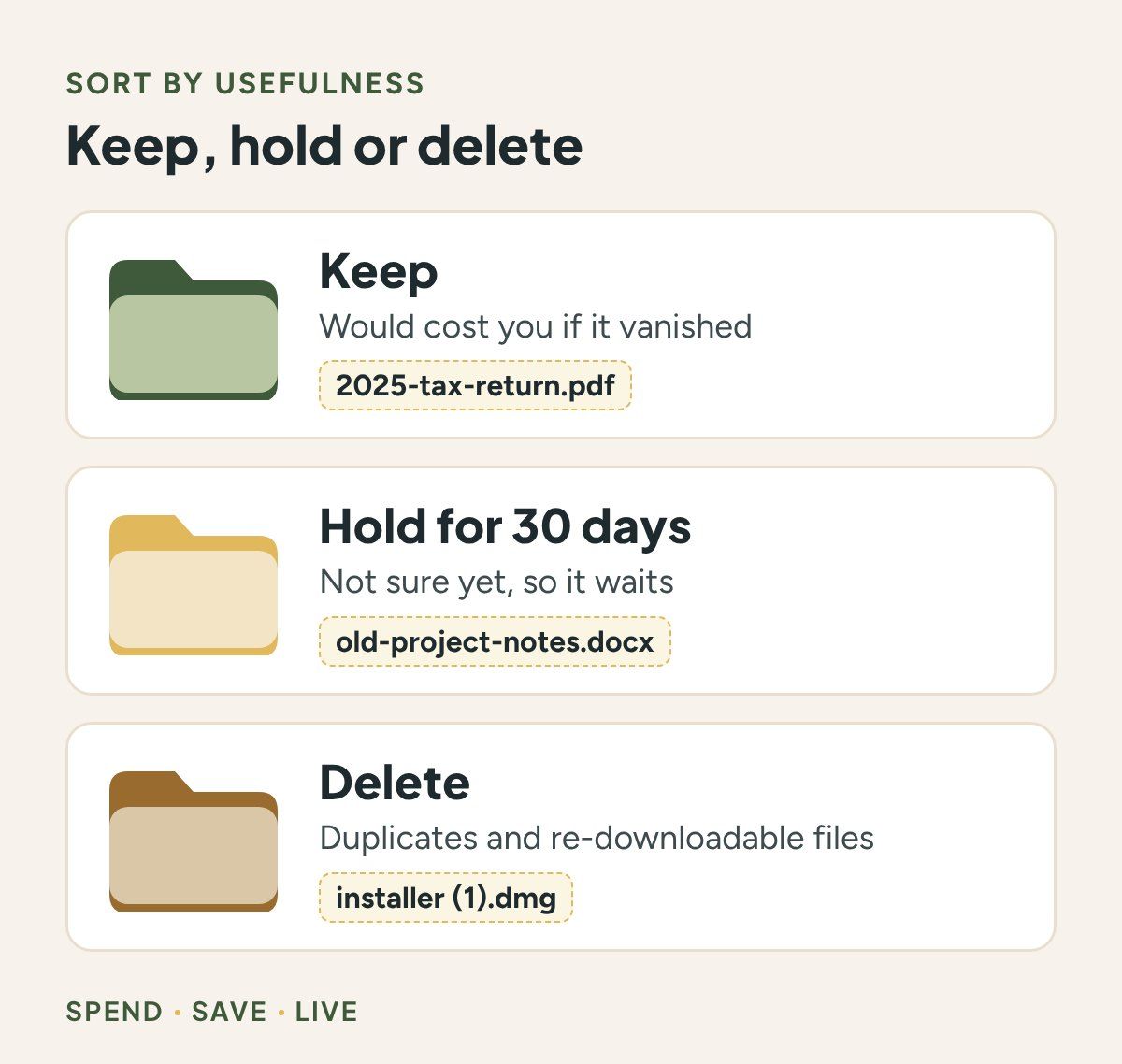
The hold folder is the whole trick. It turns a wrong call into a move instead of a loss, because a file in HOLD is still right there if you need it next Tuesday. We picked 30 days to match the trash windows above, and that’s our rule, not anyone’s official guideline.
Duplicates are the easiest wins. On Android, the Files by Google app marks the original in a set of duplicates with an “Original” badge, recommends keeping it, and moves the copies you select to the Trash (Files by Google Help). On a computer, sort the folder by name or size and the copies with “(1)” or “copy” in the name tend to line up next to each other.
Not sure whether a piece of paperwork is a keep? Our life admin checklist covers which everyday records are worth holding on to.
Read more: A Life Audit That Helps You Choose One Change for 2027
What Does One Folder Cleanup Look Like From Start to Finish?
In this fictional example, a Downloads folder of 612 files ends up with 59 files kept and 553 deleted, after three short sessions and one 30-day hold.
Meet Taylor (made up, but the numbers add up). Taylor has a laptop, a backup that already passed the three-file test, and a Downloads folder that has never been sorted. Session one, about 20 minutes, goes like this:
| Step | Files | What happened |
|---|---|---|
| Start | 612 | Downloads folder, never sorted |
| Keep | 48 | Tax PDFs, ID scans, warranties, contracts |
| Hold | 94 | Unsure, moved to HOLD |
| Delete | 470 | Duplicates, installers, receipts already in the bank app |
Check the math: 48 + 94 + 470 = 612. So at first only 7.8% of the folder is a keep, 15.4% goes on hold and 76.8% is junk. That last number is very normal for a Downloads folder (it’s where files go to be forgotten).
Taylor does one session a week, so the sorting takes three weeks. The 20 minutes per session is our estimate for a folder this size, not a measured figure. Then the 30-day hold runs out, and this happens:
| After the hold | Files | Why |
|---|---|---|
| Moved from Hold to Keep | 11 | Opened a few when they were needed |
| Deleted from Hold | 83 | Never opened |
| Final keep | 59 | 48 + 11 |
| Final deleted | 553 | 470 + 83 |

And look at those 11 files. They’re exactly why the hold exists. If Taylor had deleted all 94 maybes on day one, 11 useful files would have gone with them, and nobody wants to spend a Saturday re-downloading a car insurance contract.
How Do You Declutter Accounts and Paperwork Without Locking Yourself Out?
List your accounts first, and close an old one only after you’ve saved anything you need from it. The order matters more than the tool.
- Search your email for words like “welcome”, “confirm your account” or “verify your email”. Old sign-up emails are a surprisingly complete list of everywhere you’ve ever made an account.
- Write each one on the checklist with keep or close next to it.
- Before closing, use the service’s own download-your-data page. For a Google account, that’s Google Takeout, and downloading your data there doesn’t delete it from Google (Google Account Help).
- Close the account through its settings, then cross it off with the date.
One account is never on the close list, and that’s the email address you use to sign in to or recover your other accounts. Close that one and you can lock yourself out of everything that points to it, which is the opposite of decluttering.
You’ll probably also find subscriptions you forgot about while you’re digging. Put those on a subscription tracker so the renewal dates stop sneaking up on you.
Tax papers deserve their own line. The IRS says that in general, you should keep tax records for three years from the date you filed the return, and keep the receipts and documents that support income, a deduction or a credit on it (IRS). Your situation can be different, so if you’re unsure, ask a tax professional before you delete anything tax-related, and keep scans of those papers in the Keep pile and in your backup.
How Long Should a Digital Declutter Take, and How Do You Keep It Up?
Plan on about four weeks of short sessions, then a 15-minute check once a month. Small sessions beat one huge weekend because they leave room for the hold and the backup to do their jobs.
| Week | One task | Done when |
|---|---|---|
| 1 | Back up and run the three-file test | All three files open from the backup |
| 2 | Sort Downloads into keep, hold and delete | Downloads is empty or nearly empty |
| 3 | Sort Documents and one cloud drive | Both have clear folders and a HOLD folder |
| 4 | Accounts list, download data, close old accounts | Every account has keep or close |

This schedule is our suggestion, not an official plan, so stretch it if a week is busy. If you can’t see where the sessions would fit, a time audit to find room for the cleanup shows you where your hours actually go, and a life admin day for tasks you keep avoiding can swallow two weeks of this in one go.
After week four, the upkeep takes about 15 minutes a month. On the first of each month, empty anything in HOLD that’s older than 30 days, clear Downloads and make sure the backup still runs. Add it to your monthly reset checklist or your weekly review checklist, or tick it off on a printable habit tracker so it actually happens.
Read more: A Time Audit Worksheet for Finding Room in Your Week
What Is in the Digital Declutter Checklist?
It’s a 2-page printable that takes you from the backup to the 30-day hold, plus an accounts list. Page one has the 3-2-1 check, the three-file restore test and the keep, hold and delete rules. Page two has the accounts list (service, keep or close, data saved, date closed) and the four-week schedule.


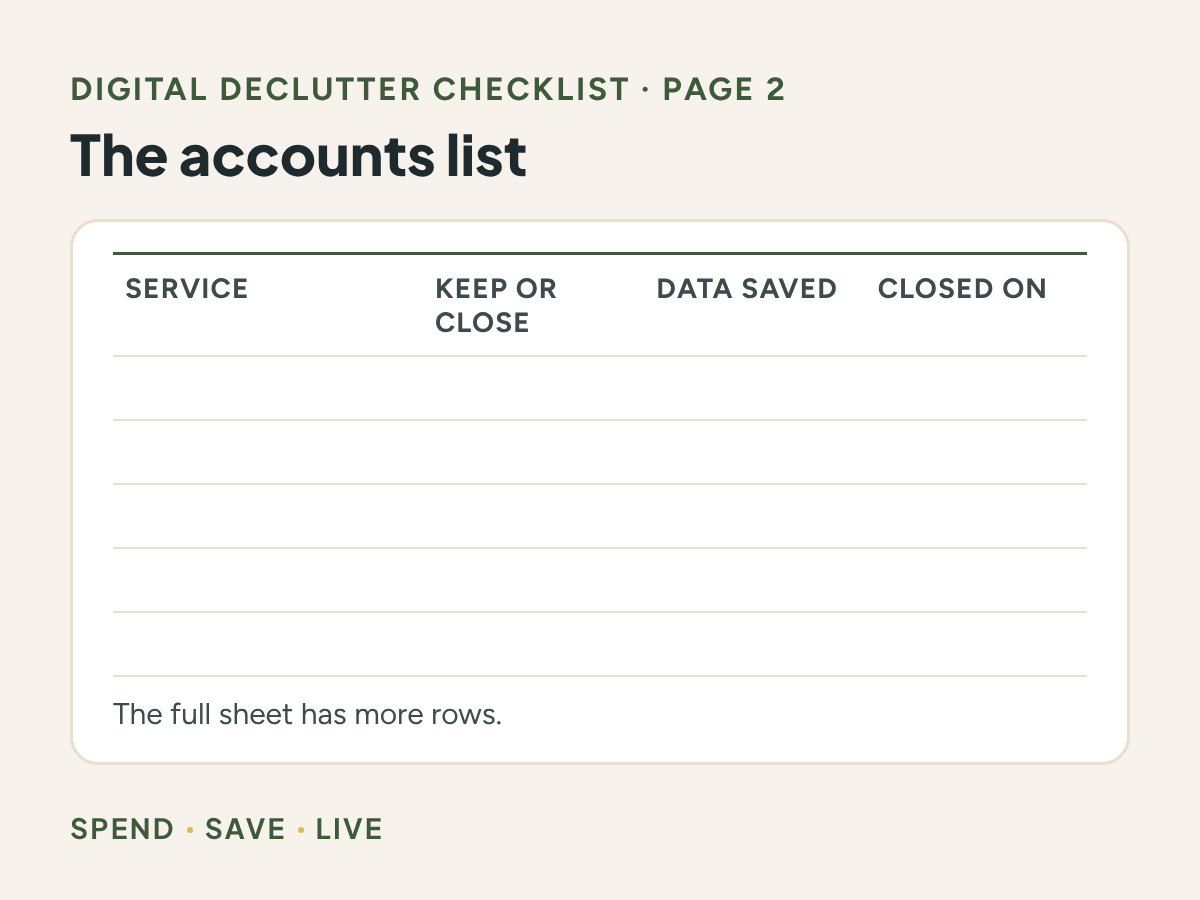
Get the full Digital Declutter Checklist
The full printable PDF is coming soon. It will be free to SPEND • SAVE • LIVE readers.
When Is It Time to Stop Sorting and Get Help?
A checklist can’t bring back a file that’s already gone for good, and it can’t fix an account someone else has taken over. Those need the service’s own help pages.
If a file is missing, look in the Trash, Recycle Bin or Recently Deleted folder first, since most services keep deleted files there for a while (the windows above). Then check your backup, which is exactly the moment the three-file test pays off. If it’s still gone, the provider’s help page is the next stop.
If you think an account was taken over, go to that service’s official account recovery page yourself, by typing the address or using the app. Don’t give passwords or sign-in codes to anyone who contacts you about it, even if they sound official. And if you’re new here, the Start Here page lists our beginner guides in order.
Key Takeaways
- Back up first, then prove the backup works by opening three files from it.
- Use 3-2-1 as a home guideline: three copies, two kinds of storage, one away from home.
- Sort by usefulness, not age, into keep, hold and delete.
- A 30-day hold folder turns a wrong call into a move instead of a loss.
- Do one location per session, and never close the email account you use for sign-ins.
Frequently Asked Questions
How do you do a digital declutter?
A good digital decluttering checklist starts with a backup. Test it by opening three files from it, then sort one folder at a time into keep, hold and delete. Delete in small batches, empty the hold folder after 30 days and set a short monthly check so the clutter doesn’t come back.
What is digital decluttering?
Digital decluttering is clearing out files, accounts and digital paperwork you no longer need, so the ones you do need are easy to find. Email, photos and your phone are part of it too, and each has its own guide on this site.
How do I declutter my Android phone?
Start with duplicates. The Files by Google app marks the original with an “Original” badge and suggests keeping it, then moves the copies you pick to the Trash. Back up first, and see our guide to making your phone less cluttered and noisy for the rest.
How do I declutter iPhone photos safely?
Back up first, then delete in small batches. Deleted photos stay in Recently Deleted for 30 days, and with iCloud Photos on, a delete on one device reaches your other devices too. Our guide to sorting digital photos without losing important files has the full steps.
How can I clear out my digital clutter without losing anything?
Go one location at a time, after a tested backup, and move anything you’re unsure about to a hold folder for 30 days instead of deleting it. Only empty the hold once the 30 days are up and you haven’t needed those files.
Your Downloads Folder Doesn’t Need Courage, Just a Hold Date
The fear that keeps a digital declutter on the someday list is real, and the answer to it is boring on purpose: a backup you’ve opened, a folder called HOLD and a date 30 days out. Run one folder through this digital decluttering checklist this week, and if it goes well, pull the whole picture together with a life audit that picks one change for the year ahead.
Sources (checked November 2026)
- Apple Support, Delete photos on your iPhone or iPad
- Google Photos Help, Delete and restore photos and videos
- Google Drive Help, Delete files in Google Drive
- Microsoft Support, Restore deleted files or folders in OneDrive
- CISA, Back Up Business Data
- Files by Google Help, Delete duplicate files
- IRS, Good recordkeeping year-round
- Google Account Help, How to download your Google data
Educational content, not financial, legal or tax advice.